
Entity Copying
Copy lets you create a new entity from an existing one, carrying over its settings instead of building it from scratch. This page covers copying a Blueprint, a Bank Terminal, and a Requestor.
Before you begin
- The entity you want to copy already exists.
- Open that entity’s own page — Copy sits next to the Edit button in the top-right corner.
Copy a blueprint
-
On the Blueprint List page, click the ID of the blueprint you want to copy.
-
In the top-right corner, select Copy.
-
Name the new Blueprint.
-
Select a new manager or keep the current one.
-
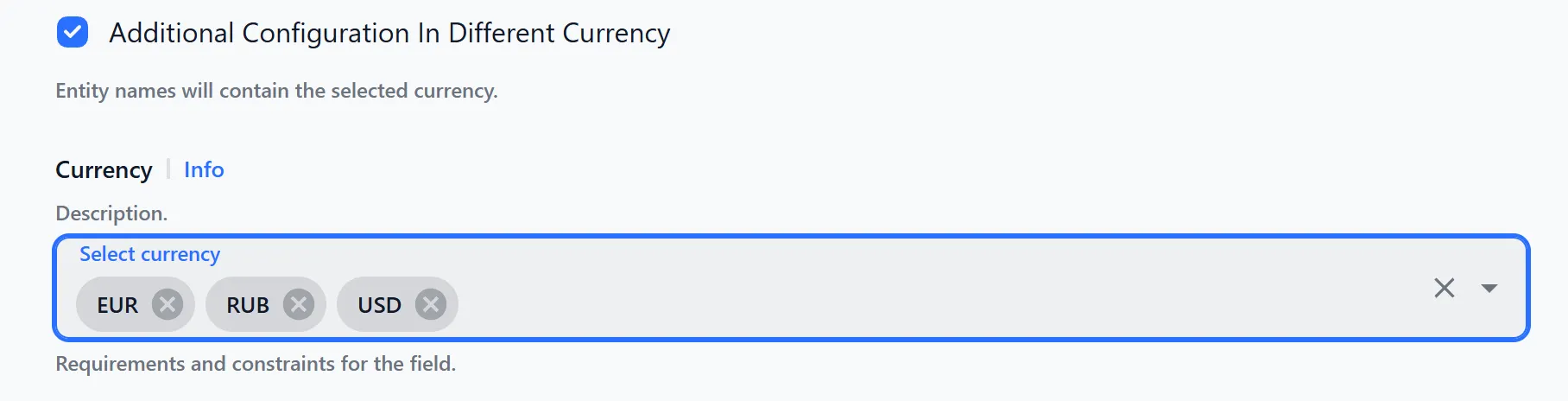
Specify the currency.
Use Inherit to reuse the currency from the original.
To create copies in other currencies, use Additional Configuration In Different Currency: check the box, then select the currencies you need from the Currency field. The entity’s ISO-3 currency code is appended to the end of each copied entity’s name.
-
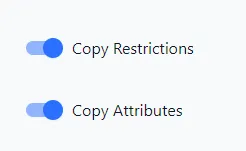
In the bottom-left corner, you can also copy Restrictions and Configurations from the original blueprint.
-
Selecting Configurations shows the Requestor and Bank Terminal fields.
-
For Requestor, choose how tokens are handled (see Token options), then enter a new name for the requestor copy.
-
For Bank Terminal, enter a new name to create the copy.
-
You can also transfer Restrictions and Attributes settings as shown below.
-
Selecting Copy Configurations opens a window with the following parameters:
- New merchant — leave empty to keep the original merchant.
- Autoname entities — names the new entities automatically, with the option to replace individual words from the original names.
- Configure requestor.
- Assign a new bank terminal or keep the current one.
-
Select Create Blueprint in the bottom-right corner.
Copy a bank terminal
-
On the Bank Terminal List page, click the ID of the bank terminal you want to clone.
-
In the top-right corner, select Copy.
-
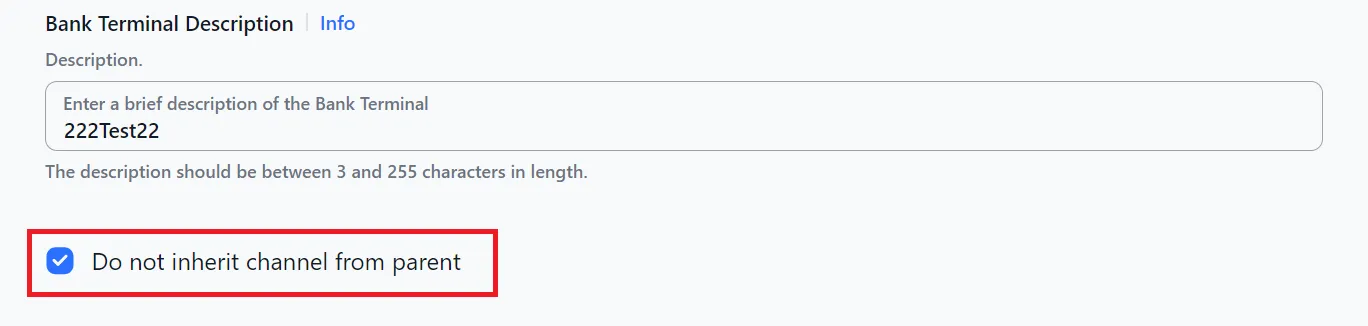
Use Inherit to auto-fill the fields:
- Bank Terminal Name
- Manager Rate Plan
- Bank Terminal Description
- Currency
If you don’t need to copy Channel settings, clear the corresponding checkbox.
-
Enter a Financial Instrument name.
-
Transfer Restrictions and Attributes settings as shown below.
-
Select Create Bank Terminal in the bottom-right corner.
Copy a requestor
-
On the Requestor List page, click the ID of the requestor you want to clone.
-
In the top-right corner, select Copy.
-
Use Inherit or enter the name manually, then select new Restrictions and Blueprint.
-
Under Tokens, choose how tokens are handled (see Token options).
-
Transfer Restrictions and Attributes from the original, or create new ones after creation via the Edit button.
-
Select Create Requestor in the bottom-right corner.
Token options
When you copy a Requestor (on its own or as part of a blueprint), choose how its tokens are handled:
| Option | What it does |
|---|---|
| Copy without tokens | Clones the requestor without any tokens. |
| Generate new | Creates new tokens, with the option to change the API Hosts. |
| Copy from parent requestor | Copies the tokens from the original requestor. |
| Copy from merchant | Transfers tokens from the merchant, with the option to change the API Hosts. |
Troubleshooting
| Problem | What to do |
|---|---|
| You can’t find the Copy button | Copy is on the entity’s own page, next to Edit. Open the specific entity by its ID first. |
| A field such as manager or currency is empty | Leaving a field empty inherits that value from the original. |
| You want copied names to match the original | Use Inherit for the name and currency, or Autoname entities to base the new names on the originals. |
| Copies in another currency aren’t named as expected | With Additional Configuration In Different Currency, the ISO-3 currency code is appended to each copied entity’s name automatically. |