
Orders
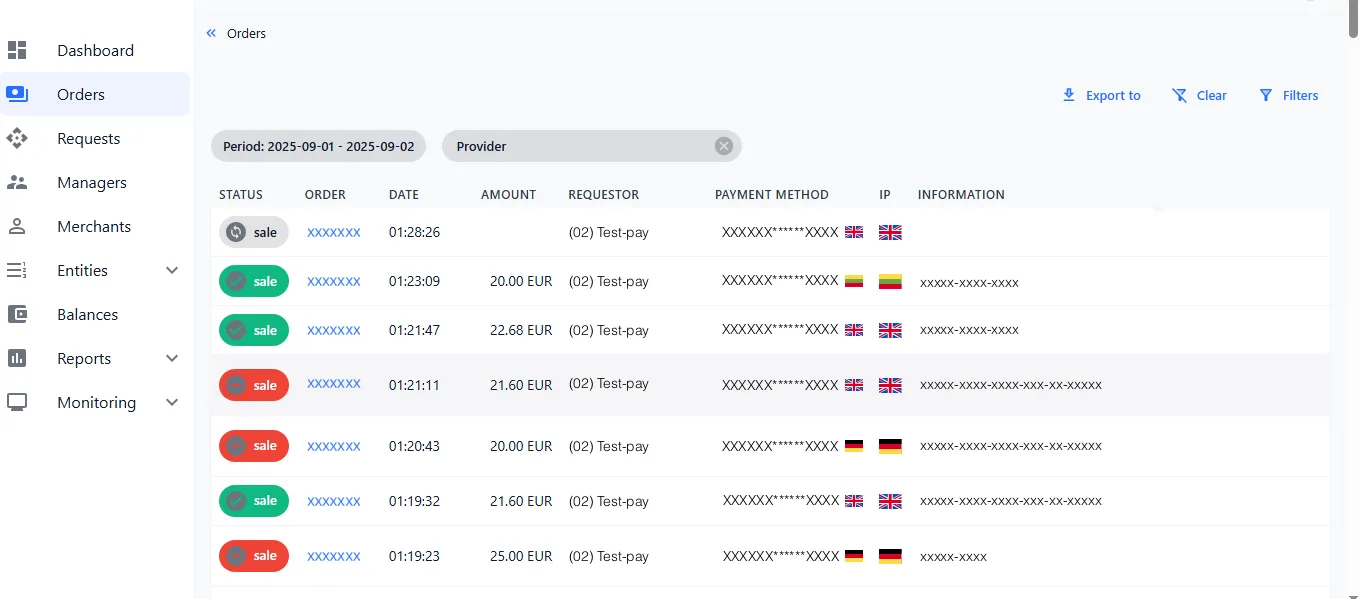
The Orders screen shows every transaction processed in the system. From here you can inspect a transaction’s details and request logs, add card parameters to the blacklist, run manual operations, and filter or export the list.
Before you begin
- You have access to the Orders tab in the console’s left menu.
View transactions
-
Open the Orders tab. It displays all transactions processed in the system.
-
Select a transaction to open its details.
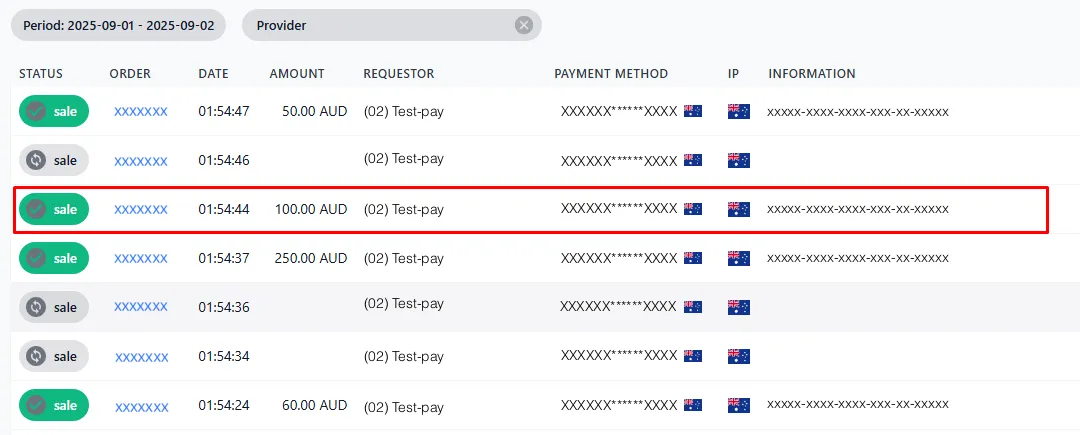
Transaction details
| Field | Description |
|---|---|
| Date | Transaction date. |
| Amount | Transaction amount. |
| Status | Transaction status. |
| Type | Transaction type. |
| Error | Error code and description. |
| Order ID | Unique transaction identifier. |
| Merchant Order ID | Merchant identifier; may be unique or non-unique depending on the provider’s settings. |
| Provider Initial Order ID | Identifier from the provider’s side. |
| Description | Transaction comment. |
Statistics
In the Statistics section you can view all information related to the card.
- Select the cardholder’s name to see the transactions and cards used by that user.
- Select a card number to see all transactions made with that card.
Blacklist
In the Blacklist section you can add card parameters to the blacklist: country, domain, PAN, BIN, and others.
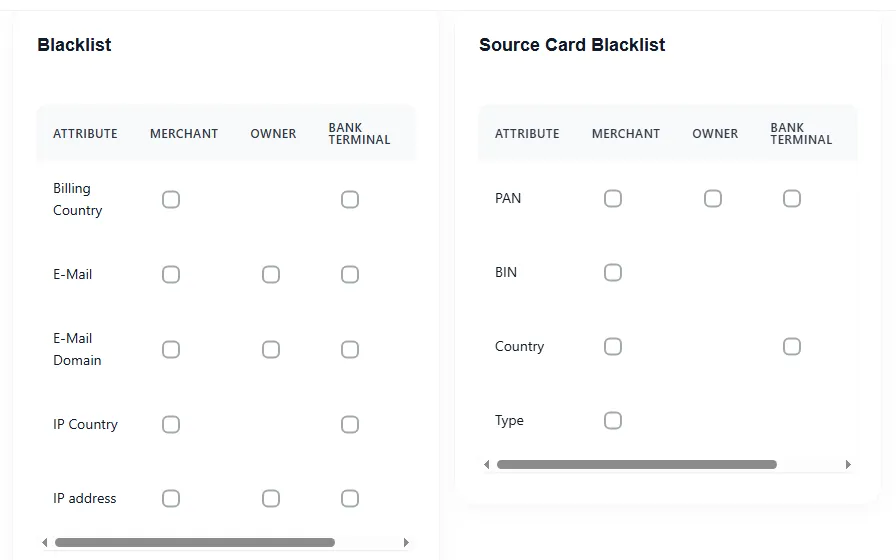
To add a parameter, check the box next to it.
Requests
The Requests section shows logs of the merchant’s interactions for the operation.
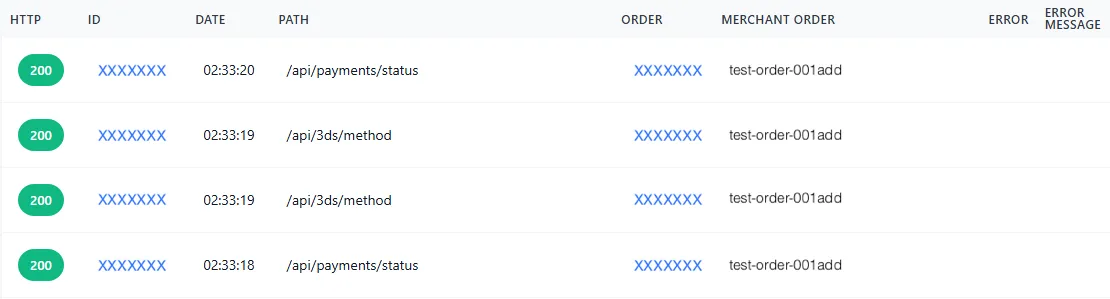
Select a request row to open its details.
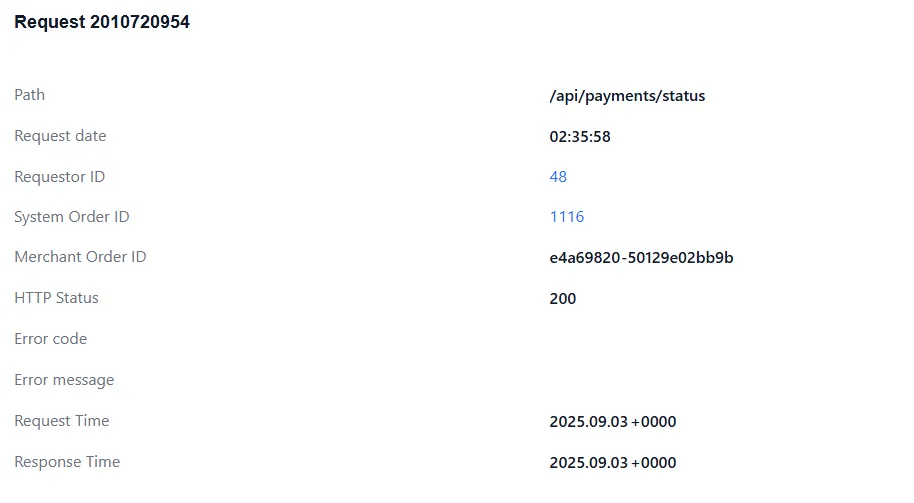
The request details show:
| Field | Description |
|---|---|
| Path | API link used by the merchant. |
| Request date | Request submission time. |
| Requestor ID | Identifier of the request initiator. |
| System Order ID | Unique transaction identifier. |
| Merchant Order ID | Merchant identifier; may be unique or non-unique depending on the provider’s settings. |
| HTTP Status | Server response code for HTTP requests. |
| Error code | Error code. |
| Error message | Error description. |
| Request Time | Time the request was sent to the server. |
| Response Time | Time the server response was received. |
The details also include these panels:
-
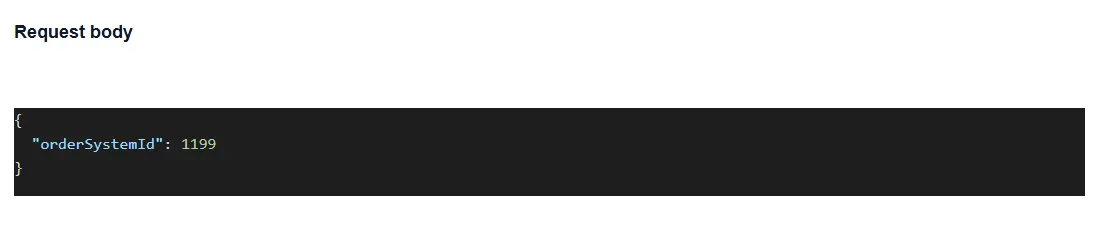
Request Body — the data sent by the merchant.
-
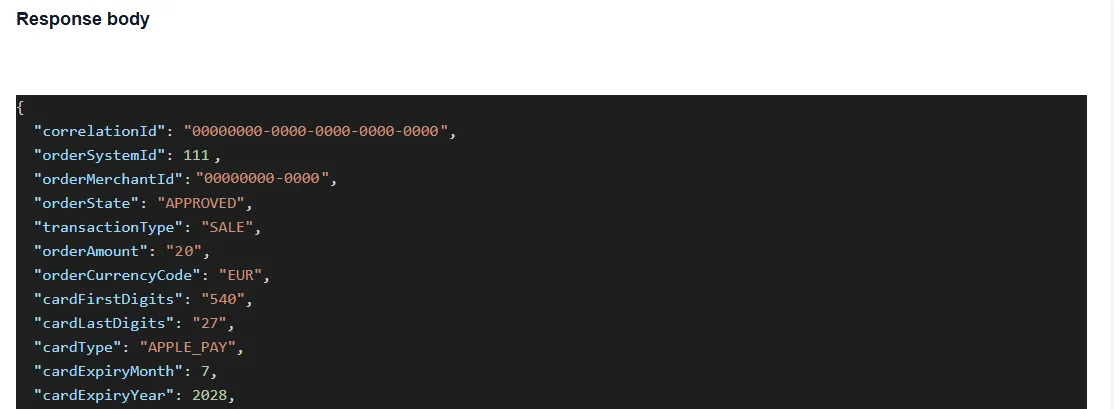
Response body — the server response.
-
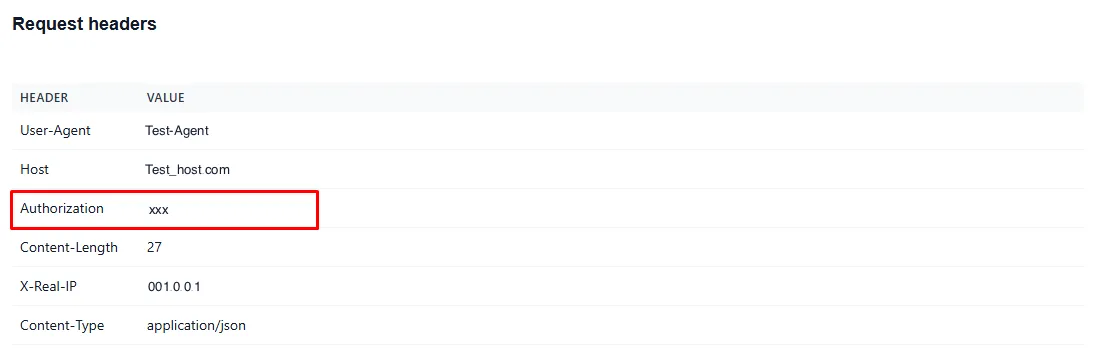
Requests Headers — the request headers, where you can check the authorization token if needed.
Manual transaction operations
In the transaction information section, you can perform the following operations manually by selecting the corresponding button:
| Operation | What it does |
|---|---|
| Reversal | Processes a refund. |
| Chargeback | Marks the transaction as “chargeback.” This is only a marker — the information is sent to the merchant for potential further filtering. |
| Fraud | Marks the transaction as “fraud.” This is only a marker and doesn’t send any data to the provider. |
| Approve | Changes the transaction status from SALE_DECLINED to SALE_APPROVED. |
| Check Status | Sends an additional fixed-status request to the provider. If the provider has a fixed status, it’s updated after you select the button. |
Filters
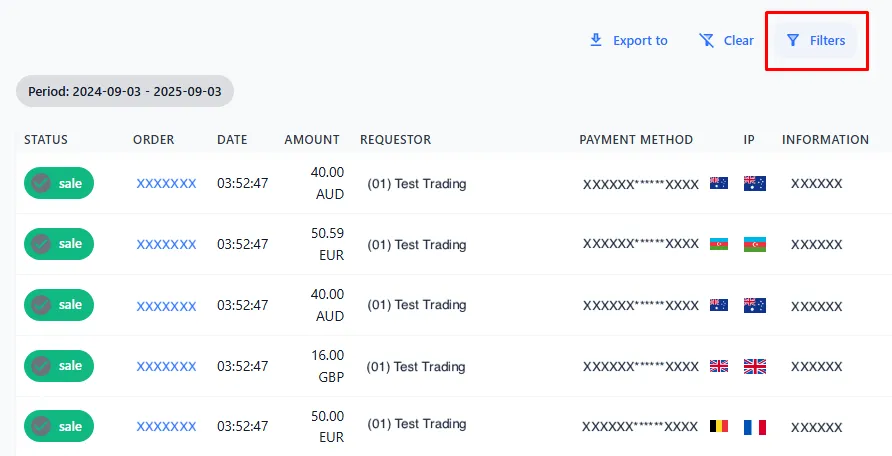
Use filters to search for specific transactions in the Orders section.
-
Select Filters in the top-right corner of the page.
-
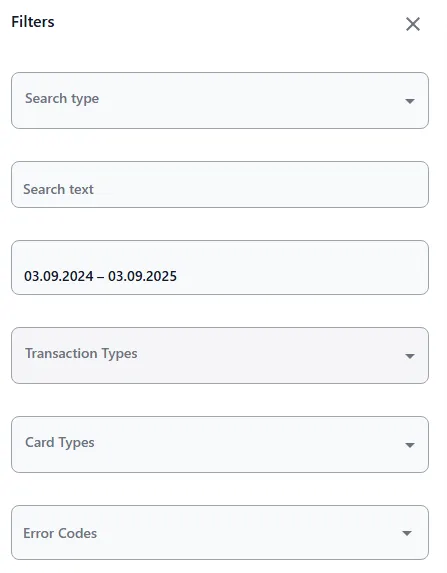
Choose your criteria in the window that opens (see Filter options below).
-
Select Apply. The Orders screen then shows the transactions that match the filter conditions.
-
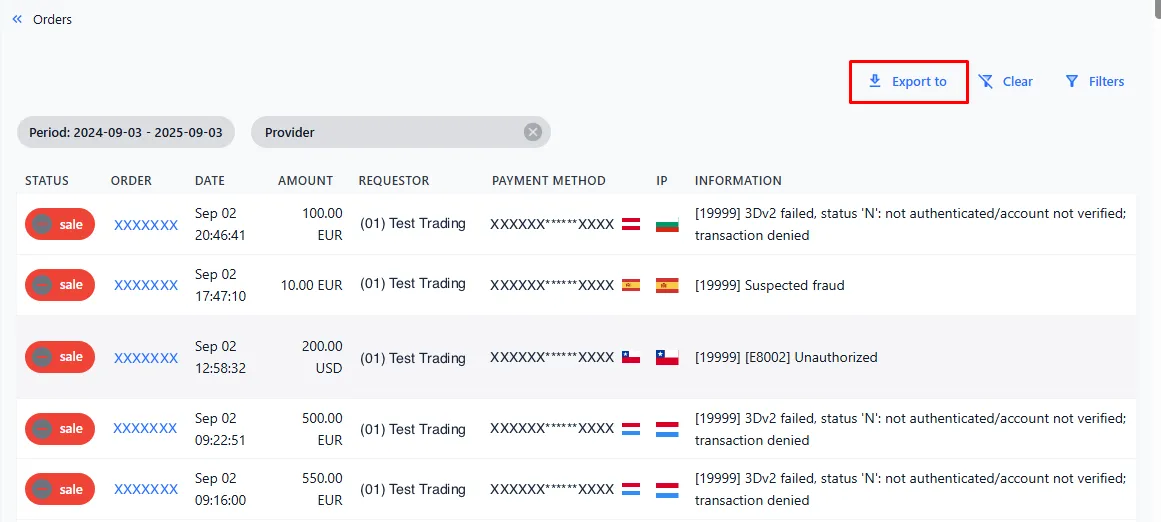
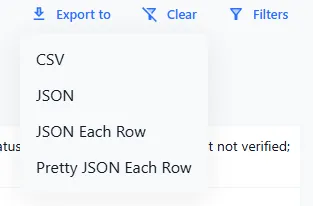
To export the results, select Export to and choose a report format. The report is generated and downloaded to your computer.
Filter options
| Filter | What it does |
|---|---|
| Search type | Type of search. |
| Search text | Text search. |
| Period | Transaction period. |
| Transaction types | Transaction type. |
| Card types | Card type. |
| Error codes | Error code. |
| Transaction statuses | Transaction status. |
| Order statuses | Filter type value. |
| Entity filters | Select the filter type (Requestor, Blueprint, Merchant, Provider, and so on). |
| Currency | Filter type value. |
Troubleshooting
| Problem | What to do |
|---|---|
| No transactions appear | Check your Filters — clear or adjust the criteria, then select Apply. |
| You can’t find a specific transaction | Use Filters (search type and text, period, entity filters) to narrow the list. |
| History disappeared after a manual status change | Manually changing a status deletes the SALE_DECLINED logs. This can’t be undone. |
| Export doesn’t contain what you expect | Exported data reflects the filters currently applied to the list. |